Installation
Install Dequel on your own infrastructure.
You install Dequel with one command. The installer sets up the control plane (dashboard, API, builders, databases engine, and monitoring) as Docker containers on your machine. Your apps can run on that same machine, or on additional servers you connect later (see Servers).
Prerequisites
- Docker and Docker Compose v2 (
docker compose) - A Linux server with ports
80and443reachable if you want public HTTPS URLs (not needed for local-only use)
Install
Run the install script:
curl -fsSL https://dequel.intrep.xyz/install.sh | bashAlternatively, download directly from the latest GitHub release:
curl -fsSL https://github.com/Lftobs/dequel/releases/latest/download/install.sh | bashThe script checks for Docker and Compose, creates a config directory at
~/.dequel, generates a unique ENV_ENCRYPTION_KEY, downloads the
docker-compose.yml and monitoring configs, pulls the pre-built images
from GitHub Container Registry, installs the dequel CLI, and asks for
an optional admin email (Let’s Encrypt notifications) and base domain
(public app URLs).
Then start the platform:
dequel startOpen https://<the base domain added while installing> to access the dashboard. If you configured a base
domain during install, the dashboard is also served on it.
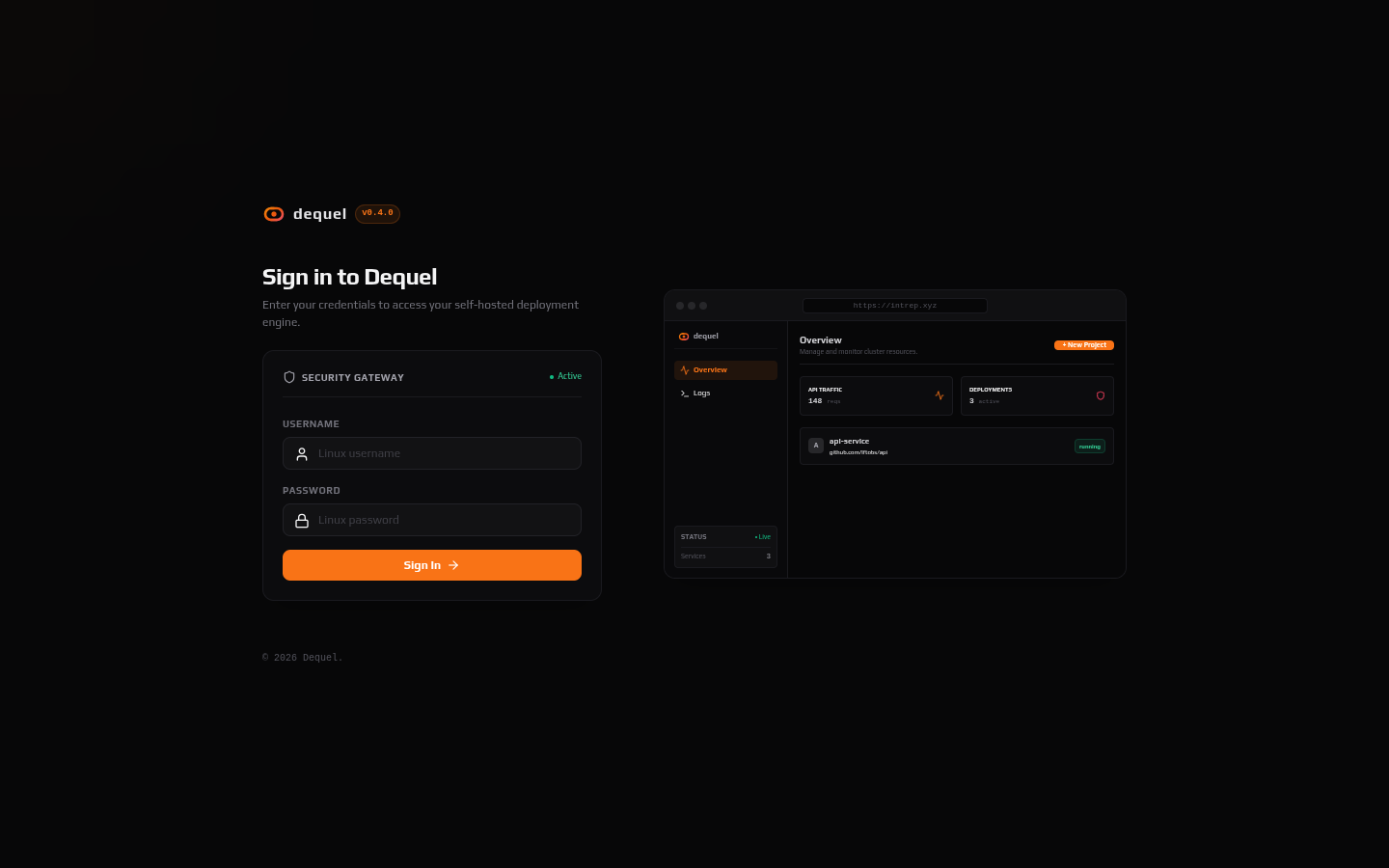
Create your login user
Dequel authenticates against Linux system users in the dequel group.
Create the group and a user after installing:
sudo groupadd -f dequel
sudo useradd -m -s /bin/bash <username>
sudo passwd <username>
sudo usermod -aG dequel <username>
Sign in with that username and password. See Authentication for sessions, API keys, and programmatic access.
Production setup
To serve public HTTPS traffic:
- Set the base domain and contact email in
~/.dequel/.env(the installer already wrote these if you provided them):CADDY_BASE_DOMAIN=example.com CADDY_EMAIL=[email protected] - Point a wildcard DNS record (
*.example.com) at your server’s IP. - Ensure ports
80and443are open in your firewall. - Restart with
dequel restart.
Deployed apps become reachable at https://<project-slug>.example.com
with automatic Let’s Encrypt certificates.
Configuration directory
Dequel stores its state in ~/.dequel (override with DEQUEL_HOME):
~/.dequel/
├── docker-compose.yml
├── .env                    # CADDY_BASE_DOMAIN, CADDY_EMAIL, ENV_ENCRYPTION_KEY
├── data/
│   ├── dequel.json         # File-based platform config (0600)
│   └── ...                 # Postgres data, backups, instance id
├── workspace/              # Build staging area
├── scripts/auth/           # PAM auth server files
└── infra/
    ├── caddy/
    │   ├── Caddyfile
    │   └── routes/         # Generated per-project route files
    └── monitoring/         # Prometheus, Loki, Grafana configs
PostgreSQL holds all platform state (projects, deployments, env vars,
databases, users). It runs as the postgres container with a persisted
volume — there is no SQLite file to manage.
The dequel CLI
The CLI manages the platform lifecycle. See the full CLI reference for update channels and backups.
| Command | Description |
|---|---|
dequel start |
Start all services |
dequel stop |
Stop all services |
dequel restart |
Restart all services |
dequel status |
Show service status |
dequel logs |
Follow service logs |
dequel update |
Update to the latest release |
dequel backup |
Back up the internal database |
dequel uninstall |
Remove everything (prompts first) |
Manual setup
If the installer does not fit your environment, replicate what it does:
create the directory layout above, download docker-compose.yml and the
infra/ configs from the latest GitHub release, write your .env with
CADDY_BASE_DOMAIN, CADDY_EMAIL, and a generated
ENV_ENCRYPTION_KEY, then run
docker compose -f ~/.dequel/docker-compose.yml up -d.
To build from source instead, clone the repository and run
docker compose up -d --build. For local development of the API and
dashboard directly, see the commands in AGENTS.md.
Updating
dequel updateThis pulls the latest images and recreates services with a rolling
restart. Pin a version with dequel update vX.Y.Z.
Next steps
- Follow the Quickstart to deploy your first app.
- Connect more machines under Servers.