Quickstart Guide
Deploy your first application to Dequel in under 5 minutes.
This guide takes you from an empty dashboard to a live HTTPS app. You need a running Dequel installation and a login user (see Installation). No Dockerfile is required — Dequel detects your framework automatically.
Step 1: Create a project
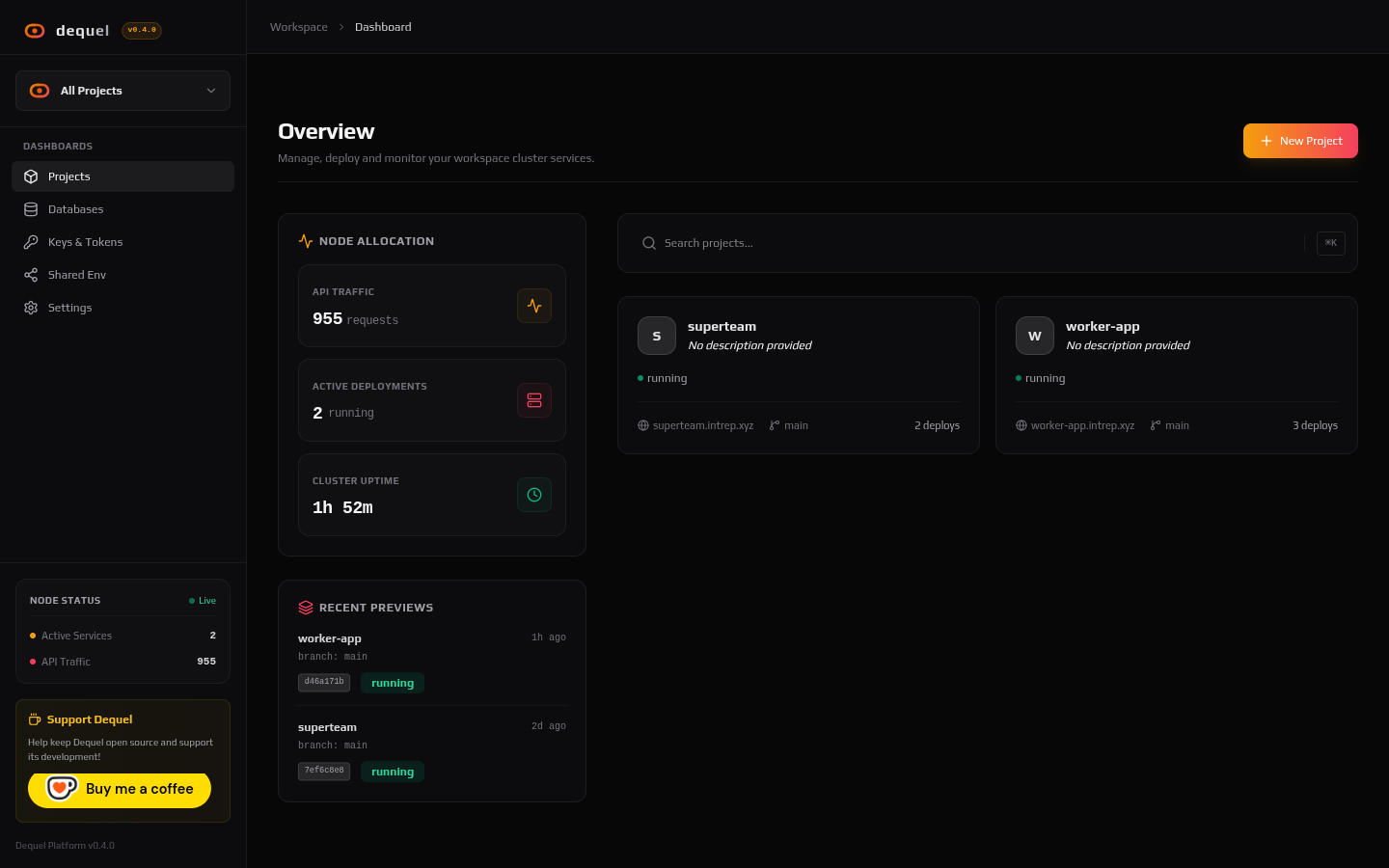
Open the dashboard and click New Project.
Fill in the wizard:
- Source — pick Git (paste an HTTPS clone URL and branch, or
connect your GitHub account to pick a repo) or Upload (a
.zipof your code). - Name — a unique project name. It becomes your default URL:
<name>.<your-domain>. - Target server — where the app runs.
local(this machine) works out of the box; other servers appear after you connect them (see Servers). - Build strategy — Automatic (Railpack) for a single service,
or Docker Compose if your repo root has a
docker-compose.yml. - For Railpack builds, confirm the detected framework settings (install and start commands, output directory, port).
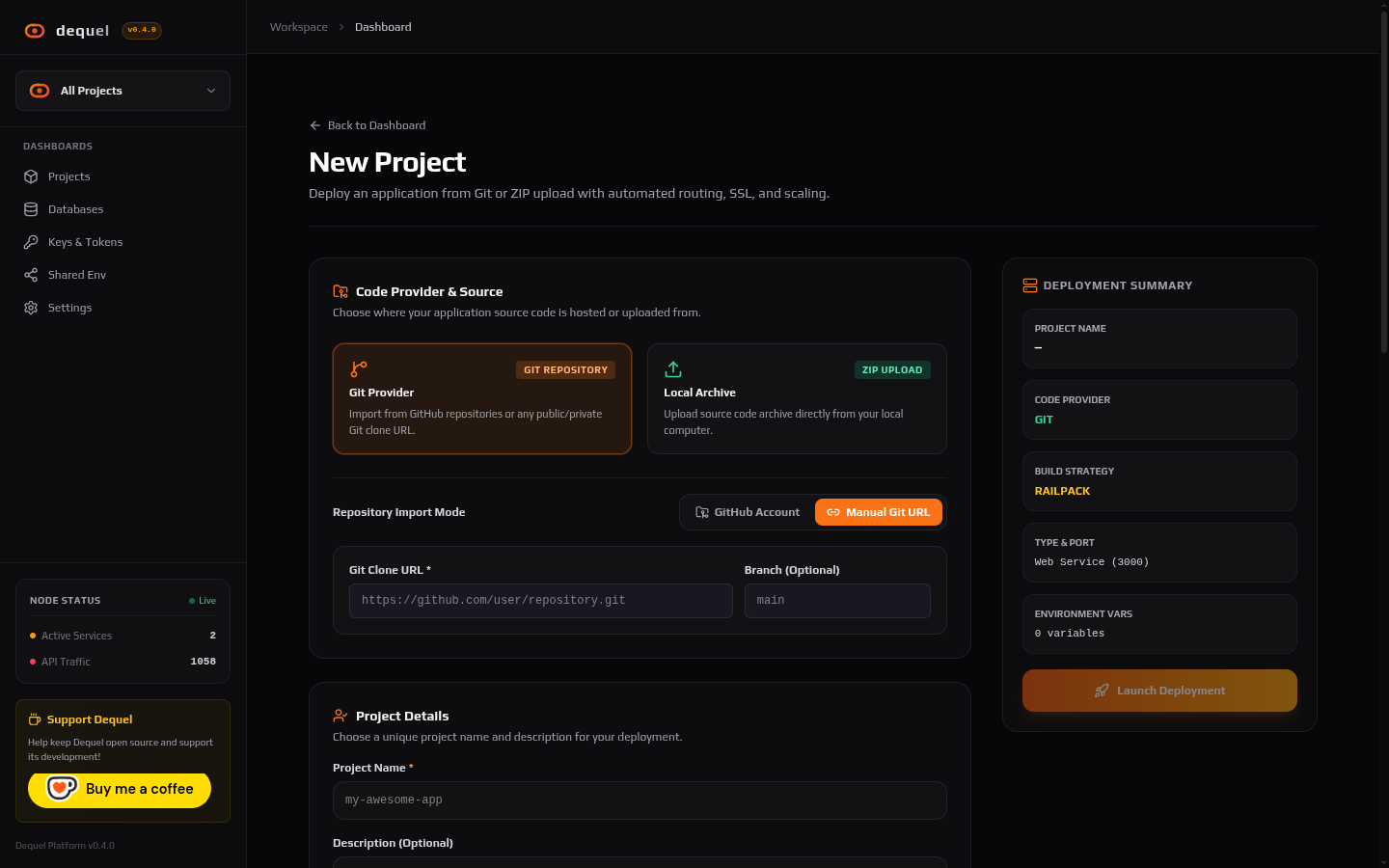
Click Launch Deployment. Dequel creates the project, links any selected shared env vars, and immediately starts the first deployment.
Step 2: Watch the build
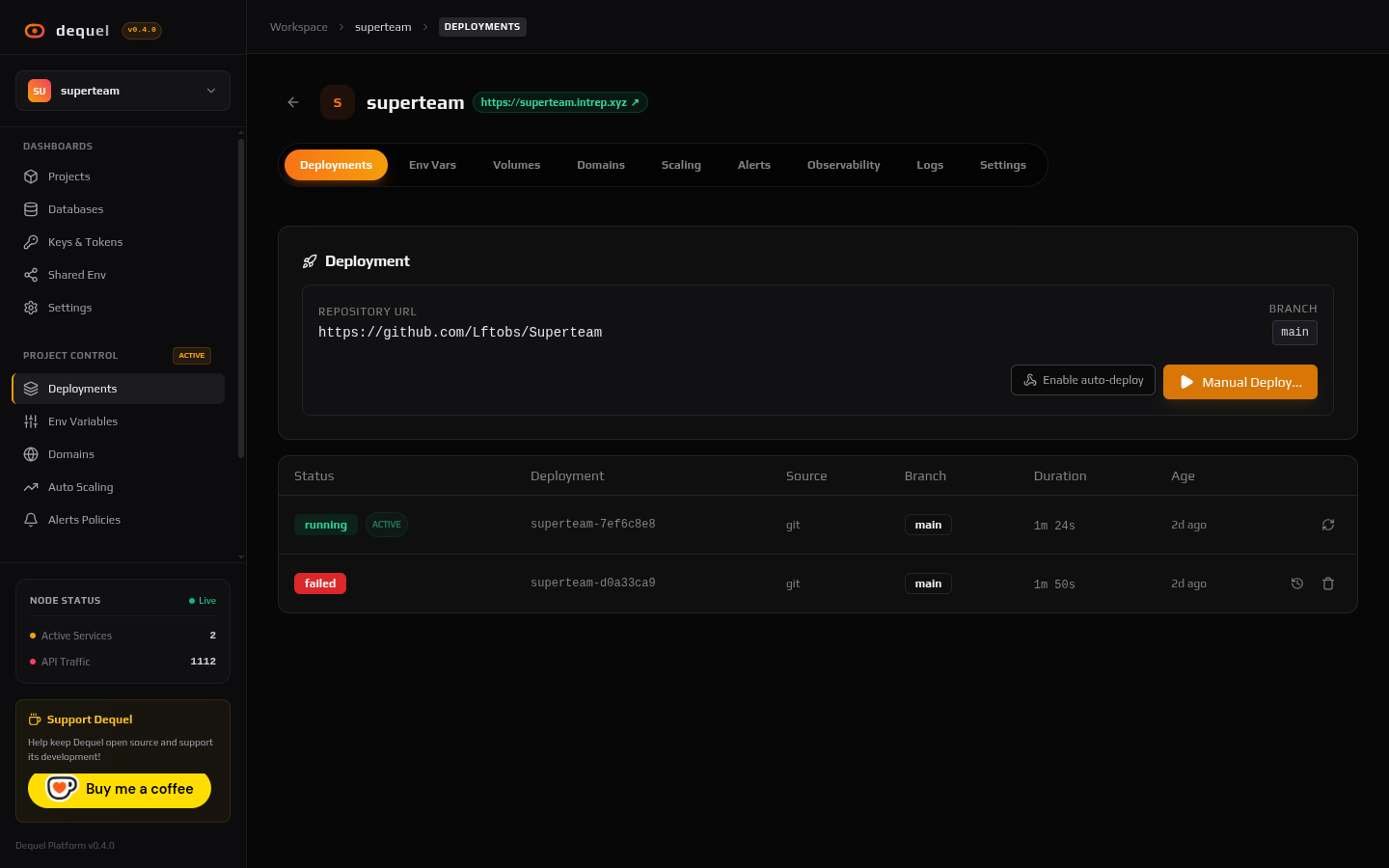
The project page opens on the Deployments tab. Build logs stream
live as Railpack detects the framework, BuildKit builds the image, and
the container starts. Deployments move through pending → building →
deploying → running (or failed if something breaks).
If the build fails, click Diagnose in the log header to hand the failure to an AI agent — see AI Diagnosis.
Step 3: Open your app
Once the deployment is running, click the live URL pill in the
project header. Locally that is
http://<name>.localhost; with a base domain configured it is
https://<name>.<your-domain> with a valid certificate.
Step 4: Push updates
- Git projects: push to the tracked branch and Dequel rebuilds automatically (via the GitHub webhook), or click Manual Deploy to rebuild from the latest commit or a specific SHA.
- Upload projects: drop a new archive on the Deployments tab.
Previous builds keep their images, so you can Rollback to any earlier deployment from the history table.
Next steps
- Add environment variables and link shared env vars.
- Attach a custom domain with automatic SSL.
- Provision a managed database.
- Set resource limits and autoscaling.